This Flutter tutorial will teach you how Flutter Activity Navigate one Activity to another Activity step by step.this tutorial will teach the the basic steps.
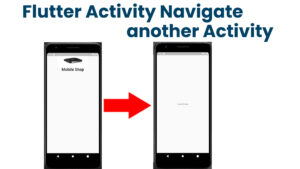
Main.dart
import 'package:flutter/material.dart';
import 'package:my_course/splash_screen/splash_screen.dart';

void main() {
  runApp(MyApp());
}

class MyApp extends StatelessWidget {
  // This widget is the root of your application.
  @override
  Widget build(BuildContext context) {
    return MaterialApp(
      title: 'Flutter Demo',
      debugShowCheckedModeBanner: false,
      theme: ThemeData(

        primarySwatch: Colors.blue,
      ),
      home: SplashScreen(),
    );
  }
}
constants.dart
class Constants
{
static const IMAGE_PATH = 'assets/images/';
}
Splash_screen.dart
import 'package:flutter/material.dart';
import 'package:my_course/home_screen/home_screen.dart';
import 'package:my_course/utils/constants.dart';
import '';

class SplashScreen extends StatefulWidget {
  const SplashScreen({ Key key }) : super(key: key);

  @override
  State<SplashScreen> createState() => _SplashScreenState();
}

class _SplashScreenState extends State<SplashScreen> {
@override
  void initState() {
    navigateToHome();
    super.initState();
  }
  void navigateToHome()
  {
    Future.delayed(Duration(seconds: 5),
    (){
      Navigator.push(context, MaterialPageRoute(builder: (context) => HomeScreen()));

    });
  }

  @override
  Widget build(BuildContext context) {
    var size = MediaQuery.of(context).size;
    return Scaffold(
      body: Center(
        child: Column(
          children: [
            Container(
              child: Image.asset('${Constants.IMAGE_PATH}p2.jpg',
              width: size.width / 1.8,
              height: size.height / 7,
              fit: BoxFit.fill,
              ),

              ),
              Text("Mobile Shop",
              style: TextStyle(
                  fontSize: 30,
                  fontWeight: FontWeight.bold

               ),
              )
          ],
        ),
      ),
    );
  }
}
home_screen.dart
import 'package:flutter/material.dart';

class HomeScreen extends StatefulWidget {
  const HomeScreen({ Key key }) : super(key: key);

  @override
  State<HomeScreen> createState() => _HomeScreenState();
}

class _HomeScreenState extends State<HomeScreen> {
  @override
  Widget build(BuildContext context) {
    return Scaffold(
      body:SafeArea(
        child: Center(child: Text("home Screen")),
      )

    );
  }
}
I have attached the video tutorial below it will help you to do this step by step.