Up next in 10


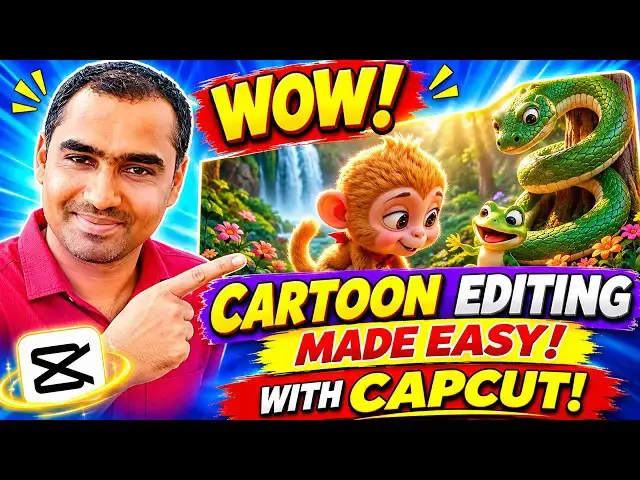
🎬 Want to create amazing cartoon videos using CapCut? In this tutorial, you'll learn **how to edit on CapCut** step by step, even if you're a beginner!
I'll show you how to edit cartoon videos, add clips, arrange scenes, include sound effects, and create engaging videos using simple CapCut editing techniques.
Whether you're a beginner or a content creator, this **CapCut video editing tutorial** will help you improve your editing skills and create videos that people love watching.
👍 Watch until the end and start creating your own cartoon videos with CapCut!
🔔 Subscribe for more easy video editing tutorials and AI content creation tips.
**🔍 Related Keywords:**
How to edit cartoon videos, CapCut editing for beginners, CapCut tutorial, cartoon video editing, CapCut tips and tricks.
#HowToEditOnCapCut #CapCutVideoEditingTutorial #CapCutTutorial #CartoonVideoEditing #CapCutForBeginners
Show More Show Less View Video Transcript
0:00
Today I'm going to teach how to edit the
0:02
cartoon videos. So I already made the
0:05
videos so I'm going to edit. So what
0:07
you're going to do is edit it very
0:09
important stuff [snorts] for the any
0:12
cartoon filming. So click import.
0:16
These are the three videos. I'm going to
0:17
select them.
0:19
So first I have to import one by one.
0:22
This is the first screen. Click at them.
0:25
The first screen.
0:27
Okay. The first one. The second step
0:29
with this I'm going to add them add in
0:32
the second one. The third one I'm going
0:37
to add one by one. So this is second
0:38
one. This is a this is a second one not
0:40
that is this one second one.
0:43
This is a third one. So I have added
0:45
three three animation together. Okay. So
0:49
now what I'm going to is so I'm going to
0:51
do the uh another one is when you uh
0:55
this kind of a animation videos very
0:58
famous on YouTube or Facebook res and
1:01
all. So I saw there are million views
1:04
are going this kind if you make this
1:06
kind of videos. Okay you can uh go to
1:09
the chat GBT and uh here you can write
1:14
the prompt and do it. It's very simple.
1:16
So here these are the animations. So
1:18
here so after what you get importance of
1:21
people are not doing. So this is the
1:23
text to voice over prop this mean this
1:26
one. Okay.
1:27
>> Deep inside mysterious jungle
1:30
>> a little baby monkey discovers something
1:32
extraordinary. A magical golden banana
1:36
but suddenly
1:37
>> so this this this voice is very awesome.
1:40
So this [snorts] kind of voice we have
1:42
to generate. I am I have uh done this
1:46
full animation using video express.
1:48
Okay. So video express I have did it. So
1:51
this cartoon animations. So what I did
1:53
here is here. So what I'm going to do is
1:56
here. So I'm going to edit it. So you
1:58
can see
1:59
this capture. So what I'm going to do is
2:02
here. So first I'm going to go to the
2:06
text edit tool. Click on it. Click it.
2:09
So here first the transcript. You have
2:11
to include the transcript as well. Then
2:13
only the easily YouTube or any other
2:17
social media understand what is inside
2:20
this video. Okay. The when the people
2:23
look at the video, some people doesn't
2:25
understand English quickly. Okay. So
2:28
they can easily read through the
2:32
subtitle as well. So the subtitle is
2:35
very important stuff when you are
2:37
implementing the videos. Okay. So when
2:38
we can uh here this is subtitle. So the
2:41
title so these are the videos script the
2:44
title are going on. So simply the first
2:47
screen deep inside the my street jungle.
2:51
So this single one I'm going to look I'm
2:54
going to go to here
2:57
you have to simply you have to reduce
2:59
the point size
3:01
according accordingly. So you place it
3:04
over here.
3:05
So whatever is we have to uh again we
3:08
have to size it as seven
3:13
press enter key. So here
3:16
press enter key
3:19
uh okay here press enter key okay so
3:22
here simply we have to adjust adjust the
3:25
font size also we have to adjust okay
3:27
it's nice
3:30
okay it's nice okay it is the font size
3:33
is very nice so the font size is very
3:36
nice
3:40
the font size is very nice you can see
3:43
according to The font size is very nice.
3:45
Okay. So now again what you're going to
3:47
do is here your different different
3:49
styles are there. So here we have to
3:51
import one of this. So here this is a
3:53
very nice import this. So you can write
3:55
like this one or this. So this one I
3:58
prefer. This is nice. Okay. This is
4:01
nice. It is suitable with along with the
4:03
background as well. Okay. The the title
4:06
should be very clear. So if you want to
4:08
you can make the animation as well. Some
4:10
of the uh things I have animation as
4:13
well. You can go to the animations.
4:16
Okay. Simple. If you have this if you
4:18
have if you are uh touch with this uh
4:23
diamond symbols, you have to pay them to
4:26
cap cut.
4:28
Okay. So without paying and using the
4:31
tool rather than uh free one, you can
4:35
touch with the
4:38
uh without diamond one. So this one.
4:42
Okay. This one.
4:43
Yeah, this one is here.
4:45
>> But this one the lot of people are using
4:47
this one here.
4:48
>> Deep inside a mysterious jungle.
4:51
>> Okay, so this so this is very simple. So
4:53
you click on it here.
4:55
>> Deep
4:56
>> and uh
4:59
this animations
5:01
and out this out. This one is a looping.
5:04
There are a lot of things available.
5:06
Okay. So this one is a good one. So
5:09
double click on it.
5:11
>> Okay. So here you have a durations as
5:15
well. Here you can
5:16
>> deep deep deep
5:20
click on it.
5:21
>> Deep inside a mysterious jungle. A
5:24
little deep deep deep
5:27
>> this one is a second. It's also that
5:29
here.
5:32
>> A little baby monkey discovers something
5:35
extraordinary.
5:37
subtitle you can put it here.
5:40
So after that scene by scene what we
5:42
going to do is we have in between this
5:43
scene and scene by scene what you going
5:45
we have to do that uh transition as
5:49
transition also we have to go over here
5:52
we have to add the transition effect
5:55
um here we can write black
6:00
fade.
6:03
This is a very nice effect black fade.
6:05
Okay. Because this one you can add add
6:07
them in between the transition.
6:10
Okay. Each and scene you can add them so
6:12
that it is
6:13
>> but suddenly
6:14
>> so then only that animation will be
6:16
cool.
6:18
Okay. Rather than here
6:20
>> but suddenly a giant jungle.
6:22
>> So now you can add them here over here
6:24
in between there. Okay. So that you can
6:27
add them. This is very must. Okay. So
6:30
here you can see here the
6:33
>> but suddenly
6:35
>> so again second one Ctrl C to copy Ctrl
6:37
V to paste and get the script again here
6:40
you can paste it over here
6:43
second one
6:47
suddenly this one copy this back to here
6:51
paste them
6:54
so you can adjust them accordingly
7:00
Okay, you can adjust them accordingly.
7:02
Here it's accordingly. Again, you can
7:04
copy this and paste it over here. This
7:06
one also you can adjust accordingly.
7:24
Okay.
7:28
So you can see this everything is uh we
7:31
can you can check double check on it
7:32
that it's going to
7:35
be going good or not.
7:42
It's working.
7:48
Okay. Now we can just look like the
7:51
simple
7:53
this kind of one. We can make it simple.
7:54
You can see here. Okay. So that
7:57
everything is a very wellware.
8:00
Okay. So this one you can adjust them.
8:03
Uh two lines is great. Instead of three
8:09
little bit okay now it's okay. Okay. So
8:14
that's now it's working fine. Okay. It's
8:17
the same type you can write it. Subtitle
8:19
also we can arrange them below like
8:21
this.
8:24
Okay. photo
8:26
subtitle.
8:28
So it's very simple. So here you can see
8:31
it's fine. So apply this effect and
8:33
everything. The same effect you can
8:36
animation effect.
8:38
Press not apparing. Add them here as
8:41
well. Here also we can add them effect.
8:44
Now we can check.
8:46
>> Deep inside a mysterious jungle. A
8:49
little baby monkey discovers something
8:51
extraordinary. a magical golden banana.
8:55
But suddenly, a giant jungle snake
8:57
appears. Now the little monkey must run
9:00
for its life to protect its precious
9:02
treasure. But the little monkey
9:04
discovers that sharing is the greatest
9:06
treasure of all. And deep in the jungle,
9:08
a beautiful frame.
9:10
>> Okay, this is a simple story. Okay, this
9:13
is simple story. So here when the story
9:16
is going to end, I'm going to go to
9:18
simple animation also. Put here we can't
9:20
do it. we have to do the uh customize
9:24
part as well.
9:27
So you can see that black intro is there
9:30
that animation black intro.
9:41
End of the video you can check it here
9:42
the black. This is text animation not a
9:44
text animation. Uh we have to check only
9:47
the black tint, black tint
9:51
and black tint.
9:58
back side is there. So end also icon the
10:01
basic black. So end also we can't put it
10:04
here. This one
10:06
create a duplicate frame transition.
10:08
Okay. So what I'm going to do is so the
10:10
black also you can do that do that one
10:13
by manually. So let's go to
10:19
uh media.
10:23
Uh you can put it there.
10:27
Uh text
10:30
simply you can add a text.
10:40
Put it here. Text the text. I'm going to
10:47
here text to show that. Yeah. Put it
10:50
here.
10:53
and delete them. Rather than doing this
10:56
one, simply go to here. You can type it
10:59
here. Black
11:01
background. Simply can get black
11:03
background. We can get a one black
11:06
background over here.
11:18
Okay. So let's the black background. I'm
11:21
going to download them. So this a black
11:25
background there. No problem at all.
11:38
So after that I'm going to import them.
11:49
Then put it here as at the end.
12:02
Okay. So now here what I'm going to say
12:04
I'm going to touch it here.
12:10
Then go to the animation part key frame.
12:14
or the video. Uh here scale
12:18
at the top.
12:22
Here we have a tap called that
12:26
uh opacity. That's the opacities.
12:46
Blend. So opacity. You can click the
12:49
blend.
12:50
Click on the blend here. Can click it.
12:53
Can click on the opacity.
12:55
Cut 100 over here. Opacity. You can
12:59
change it as
13:00
here
13:03
zero.
13:11
Here
13:13
we have to
13:18
Here we have to make it as 100. Sorry.
13:26
Okay. Sorry. I undo with them. I I made
13:31
the mistake here. You have to made made
13:33
this the opacity at zero.
13:39
I mean you can put it
13:42
when when it reach here we can put it
13:45
under
13:48
now when the when the video is going
13:51
>> treasure of all and deep in the jungle a
13:53
beautiful freen
13:55
>> okay it's
13:59
going to people think the video is going
14:02
to end okay that's it here play the
14:04
video you can see
14:06
>> now the little monkey must run for its
14:08
life to protect its precious treasure.
14:10
But the little monkey discovers that
14:12
sharing is the greatest treasure of all.
14:14
And deep in the jungle, [music] a
14:16
beautiful frame.
14:18
>> Okay, now it's working well. Okay, this
14:22
we have to do the video editing part as
14:25
well. So this one I have get some
14:27
stylish one. If it is a pure black, it
14:30
is very good. rather than putting that
14:32
uh that dots playing on the uh along
14:37
with the black here. The poor black is
14:39
very uh it's it's best. Okay, thank you
14:42
for watching.
Jobs & Education