0:00
hi friends welcome to tutor funny
0:02
channel today I'm going to teach how to
0:05
make the header section of the website
0:07
using Figma so Fixma which is a tool
0:11
which used to design the UI UX design
0:16
okay the based on the design we have to
0:19
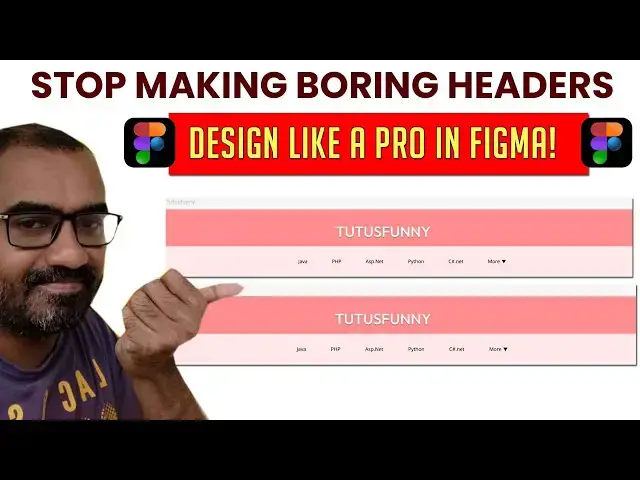
code the websites okay so here this is
0:21
the how we have designed the
0:24
uh section so let's see how to do that
0:33
so you have to get the frame first this
0:35
a frame okay this a frame so we have to
0:39
drag the frame okay so don't worry about
0:42
the sizes if it is a web click on that
0:45
sizes would be your select as a
0:56
okay 1 1,9 912 which is the width of the
1:02
web page which is the web page width
1:05
okay right now when you go to the
1:12
okay height we can we know we don't have
1:16
to consider about the height only we
1:18
have considered about the width color
1:20
I'm going to choose uh this is the color
1:23
I have choose it you you can uh choose
1:26
whatever color you need okay so at the
1:29
example I'm going to choose this same
1:31
color so you have to go to the field
1:33
color here click on that frame
1:36
the frame this frame I'm going to name
1:43
you can notice that the frame name has
1:47
been changed that click on that again
1:51
coloring the fill color i'm going to
1:53
change it as a color like this this a
1:58
this would be fine this a nice color
2:01
okay this is a nice color i have
2:06
after that we need this text this text
2:08
here you can see here i'm going to write
2:09
it as a few but if if you have any logo
2:12
you can put it so you have to get the
2:15
text tool size would be I'm going to
2:17
change it as the size something like 32
2:21
uh font I'm going to select as this is
2:23
the this is out outfit okay
2:26
font I'm going to select as outfit
2:33
okay so the font I have changed it as a
2:37
typography you have to change the font
2:39
but you need I have changed it as outfit
2:42
this the font I have according the font
2:44
the design has been changed so you have
2:46
drag and drop it over here
2:51
you can you can select the text select
2:55
as the alignment vertically we need a
2:59
sorry not here not here ctrl Z and do it
3:04
here horizontally center this is
3:06
horizontally center mean this is
3:07
horizontally center okay i want to
3:11
change the uh font color
3:16
change as white okay so after that we
3:20
have to give the drop shadow as well
3:23
drop shadow how to give the drop shadow
3:25
they go to the effect just option drop
3:27
shadow so blur option you have to select
3:30
all three is possible okay so we have to
3:34
give the drop shot it is good okay
3:36
something here very nice look you can
3:39
zoom it hold on your control key down on
3:42
your keyboard and you can zoom it and
3:44
using your uh mouse wheel hold on
3:49
uh scroll the mouse mouse wheel at the
3:53
same time you will be able to see the
3:56
zoom in zoom zoom out this is very
3:58
simple shortcut key to uh do the things
4:02
okay okay after that you have to go
4:04
along with this design so I have to put
4:06
in this rectangle you have to draw it
4:17
so this one you have to write it here
4:27
now here what I'm going to do is I'm
4:28
going to change the color
4:39
out the text this is the text okay so
4:42
text what I'm going to do is you have to
4:47
this color is the okay Java so this
4:50
color the text size would be I'm going
4:53
to change it as a uh this size I have
4:56
given here as okay here we have given
4:59
the text size little bit small
5:13
that would be fine the size 8 would be
5:16
fine okay 8 would be fine so the sides
5:21
this uh this uh this also size we have
5:23
80 you have use 60 fine
5:27
okay the website is this size will be
5:35
okay click on that you have to
5:41
okay this side 18 you have to give as a
5:44
little bit one name the font we have to
5:47
change as a instead of outload you have
5:49
to open s this is a very best font open
5:57
this also the very beautiful
6:00
control key and zoom out and see here
6:02
this is this also very best front can
6:05
Check it over here open sense
6:08
uh we have to color light
6:12
bold extra bold there are so many things
6:18
it default come as a light
6:23
and uh we have go to over here it
6:26
automatically select as upper case you
6:28
have to know upper case i want to select
6:30
as a uh lower case okay not upper case
6:34
it's default to come as uppercase okay
6:36
now here it's simple it's very very
6:43
okay it's very nice you have to put it
6:45
as a regular one it's simple
6:50
after that you have to the same thing
6:51
you have to drag it over here this one
6:53
should be I have to uh make it a space
6:56
so here in between this one as a
7:05
it over here this one has a PHP
7:37
and after that we have write more
7:53
uh space in between them uh let's put it
7:59
100 space in between them okay it's deep
8:03
it's okay yeah you can adjust the space
8:06
so 100 under 100 under 100 under 100
8:08
under 100 under 100 under 100 space each
8:10
okay in between Java and PHP and ASP
8:12
that all things we have put into the
8:14
under 100 under 100 under 100 under 100
8:14
under 100 under 100 under in between
8:15
under space of the text that's it that's
8:19
simple stuff you have to do so let's
8:21
select all hold on the shift key down
8:23
and select all control G to go group
8:25
them and this one you have to vertically
8:27
you have to align them okay this
8:33
like okay sorry horizontally you can
8:36
align them it's coming like this very
8:38
simple so after that we need a simple
8:40
stuff we need here i need a simple
8:45
this polygon tool to more
8:48
so drag on it here following on tool
8:50
simply you can drag it if it is a you
8:52
can put it there hold on the shift key
8:54
and drag it it is proportionally it will
8:56
be drawing this one also you have to
8:59
drag it and you hold on your uh select
9:03
press your arrow key on your keyboard
9:05
and you have to adjust this one i need
9:08
little bit closer to the more one okay
9:13
once uh this one click on that you have
9:16
to go to the rotation you have to put it
9:21
so it's coming like this okay how would
9:24
I get this one it is based on my
9:26
experience if it's a 19 this is the
9:28
rotation if it is 160 mean 180 mean it's
9:31
coming like this if it is minus mean it
9:36
okay if it is minus here you can see if
9:38
it is put minus before the 180 it goes
9:42
this rotation will be go above okay this
9:45
okay this is go stop okay right that's
9:48
how we So let's select this one you have
9:50
to fill color you have to select this
9:55
black stroke i I want to stroke i want
9:58
to deal with the stroke as well
10:16
simple that's the thing you have to do
10:21
here very simple you have to done the
10:23
your homepage this is simple look okay
10:25
this based on this design you have to uh
10:28
do your websites okay very simple
10:31
okay here you have to do the designs
10:36
okay this how you have make your website
10:38
design very cool thank you for watching