Up next in 10


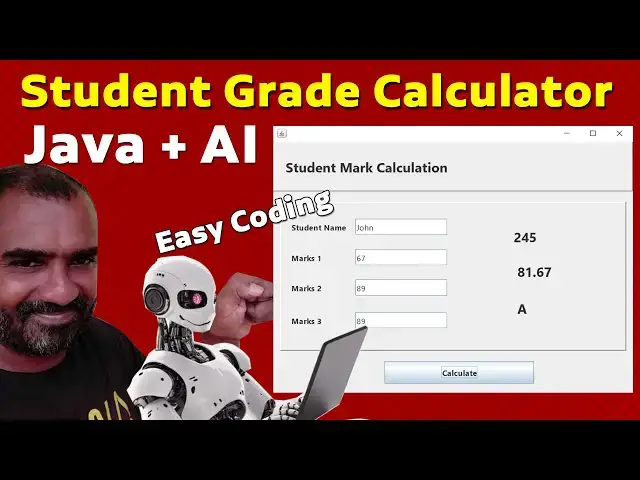
Java Swing Student Grade Calculator | Step-by-Step Tutorial with AI!
Learn how to build a Student Grade Calculator using Java Swing and AI in this step-by-step tutorial! This Java Swing tutorial is perfect for beginners who want to create interactive GUI applications in Java.
In this video, you’ll learn:
How to design a Java Swing interface for student grade input.
How to calculate total marks, average, grade, and rank.
How to integrate basic AI logic to make grade calculations smarter.
Tips and tricks for Java Swing beginners to build functional GUI apps.
Whether you’re learning Java Swing, tutorial Java Swing, or just want to create a student grading system, this tutorial will guide you from start to finish.
✅ Subscribe for more Java tutorials and programming tips!
🔔 Don’t forget to hit the bell icon to stay updated.
#javaswingtutorial #javaswing #tutorialjavaswing,
#javagui #javaswingtutorial
Show More Show Less View Video Transcript
0:00
Hi friends, welcome to tutor funny
0:02
channel. Today I'm going to teach how to
0:04
make the Java application student marks
0:08
calculation using AI. First we have to
0:11
install the net beans ID in your
0:13
machine. After that what I'm going to go
0:15
to the Google uh chat gbt. You have to
0:19
type assert
0:22
world best
0:26
Java developer. Jav.
0:37
So I need to give the requirements over
0:39
here. Input
0:44
input student name
0:49
marks
0:52
able to enter
0:56
P subjects
1:01
calculated and display
1:05
and display
1:09
total comma average comma create comma
1:15
rank
1:17
these are thing I'm going to calculate
1:19
using Java
1:21
swing
1:25
application
1:29
net bit
1:33
okay not the I'm not include the
1:37
developer okay not include
1:42
hosts
1:49
nets okay so let's run on
1:57
Okay, here everything working they are
2:00
doing. Okay. So the simple
2:05
so they here they are searching here
2:07
this text field everything are created
2:09
you can see here everything based on
2:11
that condition here everything are
2:13
there. Okay here you can see here uh
2:18
grading display. This is the uh three
2:22
subjects marks in order to calculate and
2:24
display the in order to display the
2:25
average and after that calculate the
2:28
rank. This is a grade calculation. after
2:30
great calculation after that uh they are
2:33
calculating the rank as
2:36
okay that's also the same thing you are
2:38
calculating the rank and display so here
2:40
how do the things very successfully
2:42
first I not do first to press them what
2:45
I'm going to do is I'm going to create
2:46
the Java application first
2:54
you have to select select Java with Java
2:56
with Java application click Next, every
3:00
check task uncheck it.
3:02
You have to do these things. Student
3:07
marks completion.
3:16
So you can do the program but you can
3:18
understand how to do the things. Okay.
3:20
Not you can explain it. Okay. You have
3:23
it just generate the tool. You have to
3:26
understand how to do it. Now he have to
3:28
give the frame name which is student
3:32
max
3:35
give the proper name while you creating
3:36
the frame.
3:41
Now here you have to size like that. Now
3:44
in panel you just drag and drop the
3:47
panel.
3:52
Select this one. Properties
3:58
bevel border. Okay.
4:01
Drag and drop it. Name it here as
4:04
student marks calculation.
4:22
with B.
4:25
Okay.
4:30
Make your site a little bit big.
4:42
After that, I'm going to drag it over
4:43
here.
4:47
properties
4:51
level board.
5:03
Now here what I'm going to do is I I'm
5:04
going to drag one text field this name
5:07
student name
5:14
right click properties
5:17
14 with bold
5:22
out text field
5:30
edit text back space to remove a
5:32
distance select Again change variable
5:34
txt
5:36
name.
5:40
Okay. txt name. We have to change the
5:43
size as 40.
5:49
Select both. Control C to copy. Control
5:51
V to paste here. This one should be max
5:54
one.
6:00
Second one. Ctrl C to copy. Control Cast
6:03
marks two.
6:10
Control C. Copy control past marks
6:12
three.
6:21
This one you have changed as txt
6:24
max one.
6:29
This one select this one. chain variable
6:31
marks to
6:33
this one mark that's it
6:38
after that what you're going to is here
6:40
I'm going to go to
6:44
simply write here
6:47
simply total
6:55
propert right click properties you have
6:58
to make the 24 size.
7:07
Make it as as 24 size. This one you have
7:09
to align correctly. That is very fast
7:27
total. Just select this one. Right click
7:31
properties.
7:32
You have to size little bit bigger.
7:36
You have to write this a total. Okay. So
7:39
this is total label. Okay. So total
7:41
label you write label
7:43
LBL.
7:46
So total
7:51
so total will be display or same thing
7:54
hold on the alt key down and get sorry
7:58
Ctrl C to copy Ctrl V to get another
8:00
copy of the total label. Paste it over
8:04
here. This should be rank.
8:07
Okay. So this this will be the grade uh
8:09
grade average.
8:12
So you have to write it average.
8:16
This one should be you have change as
8:18
LBL total.
8:22
This one should be LBL average.
8:29
This one should be LBL total.
8:32
Ctrl C to copy control V to paste. This
8:34
one should be the rate.
8:42
left.
8:45
That's the thing you have to select the
8:46
frame, right click properties
8:49
code, generate center, close it, run on
8:53
it.
9:01
Okay. Now here I'm going to select this
9:03
source. Control F
9:06
UI
9:15
changes matter.
9:23
Now it's working perfectly well. Now
9:26
what I'm going to do is I'm going to go
9:28
to implement the code section. So I need
9:32
one button
9:34
calculate. You have to give the name as
9:36
calculate.
9:47
Right click properties
9:49
font bold 14 in
9:54
copy.
9:59
is my button. Okay. So after what I'm
10:03
going to double click on it, right click
10:06
event action action perform right over
10:09
here.
10:12
These all the codes we have done
10:18
so far.
10:20
These are the things. So here what I did
10:22
here is
10:25
uh we have to put it there these three
10:29
things
10:31
it here what I did here is here this AI
10:35
we have a three subjects these three
10:38
subjects we have to assign into the we
10:42
have to create three variables all
10:44
integer type variables. So here we have
10:45
changed as a that respective text field
10:48
name.
10:50
This is the text field txt max one. This
10:53
is the name. Second one is mark to the
10:56
second name. Third marks is the third
10:59
name. We have to give this
11:02
uh name. Okay. Respective name that sub
11:06
1, sub 2, sub 3 g successfully. After
11:10
that what I'm going to see you have to
11:11
calculate the total.
11:14
Okay. So copy this and paste it over
11:16
here. And here what I did here is you
11:17
have to in order to calculate the total
11:20
we have to declaring the variable total.
11:23
These three variables we have to put it
11:26
here along with the plus symbol. All are
11:29
calculated assigned the total variable.
11:31
After total calculated we have to
11:33
calculate the average. The average you
11:36
have divide by the number of subject.
11:38
Three subject you have divided and
11:39
assigned to the average variable. After
11:41
that I'm going to calculate the grade.
11:46
grade calculation you have to calculate
11:48
this one.
11:52
Okay. So grade calculation. So here what
11:54
I did here is if the average is more
11:57
than 75 grade should be a if it is more
12:00
than 65 B 50 C 35s
12:06
otherwise
12:08
F. Okay. So this is the condition. The
12:12
student who gets more than 75 grade will
12:16
be A. The student who
12:20
uh grade will be more than 65B. So the
12:25
according to the condition we have
12:27
calculate the rate. Okay. So that is the
12:29
things I just copied and you have to
12:32
paste over here
12:38
based on the condition the
12:43
uh grade will be displayed.
12:46
Okay, the appropriate uh trade will be
12:51
displayed. Okay.
12:55
Okay. Now let's put that check text box
12:58
and try try out it try on it. So here
13:01
just copy this all the things.
13:04
So we have to
13:07
rank as
13:10
that is a total sub label this just copy
13:14
change variable C. Copy this label name
13:17
paste on it over here. Second one is a
13:20
average.
13:22
Copy this average.
13:26
This is a LBL grade
13:30
label grade. So here to this one we have
13:33
comment it. So now here what I'm going
13:35
to do is we have to if it is total we
13:39
have the string value of we have
13:41
directly we have to we can't uh we can't
13:47
uh directly we call the total we need to
13:51
convert convert it okay so when when you
13:55
add the numbers we have to get uh
13:57
display on the text field we have to
14:00
convert on it how to convert string dot
14:04
Okay. So that thing like this
14:07
two
14:13
six
14:15
9
14:17
click calculate here
14:20
everything display this is your marks
14:23
average is great it's are working fine
14:26
so here we need to have to to the uh
14:30
rank rank of the same thing like that we
14:32
have write the excellent all things so
14:34
that uh we don't need the rank. Okay. So
14:36
we have to the grade both the are sames.
14:39
Okay. So this how the calculation works.
14:43
This one should be the grade. Okay.
14:45
Great. Sorry.
14:52
Okay. So this is a program you have to
14:55
do it. is ragu
15:01
mark 67 89
15:04
89
15:06
the second
15:09
I hope you guys understood things well
15:11
thanks for watching
Java (Programming Language)
Jobs & Education
Training & Certification
Computer Education