Up next in 10

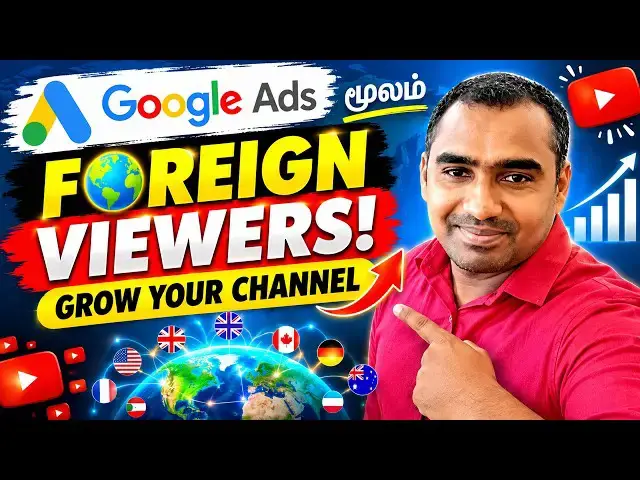
How To Promote YouTube Video On Google Ads | Get More Views & Subscribers | Tamil
Oct 5, 2026

Want to know **How To Promote YouTube Video On Google Ads** and get more targeted viewers for your videos? In this step-by-step tutorial, I’ll show you how to promote your YouTube videos using Google Ads, even if you’re completely new to advertising.
You’ll also learn **How To Create Google Ads Account For YouTube**, set up your campaign, choose the right audience, select your budget, and promote your video to people who are more likely to watch and engage with your content.
If you’re a YouTuber, content creator, beginner, or business owner who wants to grow your YouTube channel, this tutorial will help you understand Google Ads in a simple and easy way.
### What You’ll Learn:
✅ How To Promote YouTube Video On Google Ads
✅ How To Create Google Ads Account For YouTube
✅ How to set up a YouTube video advertising campaign
✅ How to choose the right audience
✅ How to set your Google Ads budget
✅ How to promote your videos and reach more potential viewers
✅ Tips to avoid wasting your advertising budget
#YouTubeAds #GoogleAds #YouTubeMarketing #YouTubeGrowth #YouTubePromotion #GoogleAdsTutorial #YouTubeTutorial
Show More Show Less View Video Transcript
0:02
Today on our channel, we are going to
0:03
look at how to grow our channel by
0:05
running Google Ads. We run Google Ads
0:11
primarily to target foreign audiences;
0:13
as you might already know. If a
0:21
foreigner watches our video, the income
0:23
generated is five to ten times higher
0:24
than if someone from our own country
0:26
watches it. YouTube calculates your
0:32
revenue based on a comparison between
0:34
your videos and the viewer's country.
0:40
So, if you create your channel to
0:41
appeal to a foreign audience, your
0:43
revenue will be much higher; you don't
0:45
need to worry about the number of views
0:47
, just capturing the right audience is
0:49
enough. I have seen many channels that
0:55
get almost 1 million views, but the
0:57
income they generate is only around 300
1:00
to 400 USD. Meanwhile, some others only
1:05
get around 10,000 views. Yet, they earn
1:08
almost...They get paid over 500 USD.
1:16
This is because their audience is
1:17
completely from European countries. If
1:21
we try to do this organically, we have
1:23
to try to cover their time zones. But
1:27
that will take some time. However, with
1:32
Google Ads, if you create a new channel
1:34
, you can run ads for your specific
1:36
niche. For instance, I am interested in
1:42
targeting the UK with pet-related
1:43
content. Okay. So, this cat...Many
1:46
people create AI videos related to this
1:48
; I searched for AI and found these
1:50
types of videos. These videos are
1:53
watched by many people in the UK. If
1:55
you present these videos well in the UK
1:57
compared to our country, people in the
1:59
UK really love cats. To create these AI
2:05
videos for YouTube, we should use AI
2:08
tools like Fliki, Pictory, or other
2:10
similar tools. Even if you use those
2:17
tools, your own human work should be
2:19
about 25 to 30 percent. Otherwise, you
2:24
will have problems when monetizing; you
2:26
need to include something and convert
2:28
it to a human-edited format before
2:30
uploading. That is why, as you can see,
2:33
they have edited it. You must edit
2:35
these videos before posting; if you
2:36
upload them directly as they are, you
2:38
will face monetization issues. You
2:40
should keep that in mind. Okay, let's
2:42
look at that later. How do we do this
2:45
with Google Ads? We use Google Ads
2:49
because we can take a video we created
2:51
and boost it. When we boost it like we
2:55
do on Facebook, we can quickly reach
2:57
that audience. Foreign audiences will
3:01
see it, think the video is good, and
3:02
decide to subscribe to the channel.
3:07
When they subscribe, at that moment,
3:09
there is a higher chance for audiences
3:10
from countries like the UK to suddenly
3:12
land on your channel. If you quickly
3:21
use ads to boost your channel and
3:23
attract a UK-based audience, then when
3:25
you upload videos based on UK timing,
3:27
your channel will be targeted toward
3:28
that UK audience. Okay, they will
3:35
naturally be interested. To do that,
3:39
the first thing we need to do is go to
3:41
Google Ads. Okay, go there, and right
3:47
here is Google Ads. Now go in there,
3:52
sign in, and once you have signed in
4:00
Normally, if we are creating a short
4:02
video, make it about 30 seconds long.
4:06
That is, create a hook in that video.
4:09
What is a hook? It is something that
4:12
grabs the viewer's attention within the
4:14
first 5 to 10 seconds. The video should
4:17
be captivating enough that they stop
4:19
while scrolling. It should be something
4:21
they notice immediately while scrolling
4:23
past. If they don't watch, it should at
4:26
least be a video that leaves an
4:27
impression. Only then will they watch
4:30
the video. Okay, before that, what you
4:33
need to do first is go here to Google,
4:35
it is right here. Create campaign, go
4:40
to this campaign. Then here, what we
4:53
need to do is select our objective.
4:56
Since we are growing our YouTube
4:57
channel, we don't really need all these
4:59
other objectives. We don't have the
5:03
need to promote any products. I will
5:06
directly create this for YouTube reach
5:08
and views. Here, it will ask you to
5:11
choose your campaign goal. For your
5:16
campaign goal, if you are selling a
5:18
product, you can use it to get views on
5:20
your videos. We only need subscribers
5:25
and engagement. So, we will use this
5:28
strategy to grow our channel. Okay, if
5:33
we want to get reach, then creating
5:35
this for the maximum number of viewers
5:37
is what I need. Because this is
5:39
powerful. If we choose this, it is for
5:42
YouTube subscribers and engagement.
5:46
Once we target this, our target
5:47
audience will come into our system.
5:52
After that, getting reach for the video
5:54
is not a big deal; getting these people
5:56
is the slightly difficult part. Okay,
6:00
select this, and here is Demand Gen,
6:03
okay, select Demand Gen, and now we
6:05
continue. This is Demand Gen, and
6:31
within the Demand Gen settings, you
6:33
need to give it a campaign name based
6:35
on what you are doing; for instance, I
6:37
am going to do this for a 'cat' niche.
6:42
Since my YouTube channel is related to
6:44
cats, I am doing it for that. So I will
6:50
put 'cat', and here you can set the
6:51
timing for when you want to run the ads
6:53
and provide the date. Okay, now I will
7:00
enter the date as 25/6 here. Today is
7:06
the 5th of October, I'll set that.
7:10
After that, what I need to do here is,
7:12
"Run the product," we don't need this.
7:15
"Product feed campaign,""Show people
7:17
relevant product ads," we don't need
7:19
this; if you have a product, enabling
7:21
it to show the product—we don't need
7:23
this. So this is off, okay. What do we
7:26
need next? We don't need any of this,
7:28
we don't need conversion. For our
7:30
business, we are only going to take
7:31
engagement. We don't need any kind of
7:35
conversion or clicks; we don't need
7:36
traffic to the website or product
7:38
conversions, none of that is needed. We
7:42
need to directly promote our channel.
7:44
That's why I'm selecting engagement.
7:47
What do we need here? With this
7:49
objective, we only look for YouTube
7:51
channel subscribers. If we need views,
7:53
we will select just this. No problem,
7:55
okay. Because if we select all the
7:57
options, our budget will increase. But,
7:59
I don't need this. We only select this;
8:01
it has been selected automatically.
8:03
Conversion objective, okay. It includes
8:07
converted users, but includes...okay.
8:11
Let's skip this, okay. We don't need
8:14
all this, "Cost per action." We don't
8:16
need this, okay. This is for customers
8:20
who have already visited. To create
8:24
something like a CRM for those
8:25
customers on our channel, we don't need
8:27
"Target cost per action." Leave all
8:31
this, don't tick anything. When doing
8:33
this for the first time, for "Budget
8:35
and dates," how much budget are you
8:36
putting? If there's no data, you can
8:39
set a campaign total. If it's for two
8:43
weeks, you can set it for two weeks.
8:46
Okay, if I set a daily budget of 10
8:48
dollars—this is small, it won't be a
8:50
problem for you; if it were a product,
8:52
you could set a large amount. You can
8:56
set about 5 dollars for this. No
9:01
problem, they made the campaign because
9:03
if the budget is low, say 15, you
9:05
should put 20. Okay, now improve, it
9:12
should come like this. Because Google
9:17
doesn't do ads like Facebook, so if you
9:19
want to grow the channel, you have to
9:20
spend a bit on ads. But if you are
9:25
normally running product ads through
9:27
Google Ads, this budget won't be enough
9:29
, you'd need to put at least 100
9:30
dollars. If you are promoting your
9:33
channel daily, this is good for getting
9:35
engagement. Okay, it will start today.
9:39
For daily, it starts today. Daily
9:43
budget, okay, okay, you don't need the
9:45
colors and fonts here, that's not
9:47
needed. Okay, here we have locations
9:51
and languages. Here, for the first one,
9:55
select the second option. Don't select
9:58
the first one. Now, if you are
10:01
targeting any countries, it is right
10:03
here. We will...Now, see here, they
10:12
have given "Presence or interest." This
10:18
recommendation is for when you are
10:19
targeting people in the UK, USA, or
10:21
European countries, but the problem is
10:23
they aren't actually in those countries
10:25
; they are in India or Sri Lanka, but
10:27
they have an interest in and are
10:29
searching about those countries. Since
10:34
it reaches people with that interest,
10:36
do not select this option. The second
10:40
option is for when you only want to
10:41
target people who are regularly in that
10:43
specific location. Okay. Next is
10:47
devices, what are the eligible devices?
10:50
Okay. Regarding eligible devices,
10:57
research which devices are popular in
10:59
countries like the UK or European
11:01
countries using a site, and select only
11:03
those specific devices. After selecting
11:10
, if you don't need a specific screen,
11:12
you can turn it off. I don't usually
11:15
use this, so stop it. Okay, we'll
11:17
proceed after giving this. Okay, we
11:19
will leave the operating system and
11:21
other settings as they are. Ad
11:22
schedules, we will set it to all days.
11:25
Because only if we set it to all days,
11:27
our next campaign...I suggest setting
11:29
it to all days because some people
11:30
research and set this up. Only if we
11:34
put all days can we analyze which days
11:36
get the most views when running the
11:38
second campaign. We can check that. You
11:43
can look at all the impressions
11:44
received here. That is a very important
11:47
thing. Okay, this Campaign URL isn't
11:52
needed here, but it is used if you have
11:54
Google Analytics, where we include this
11:56
information. Including it means if we
12:05
select Google Analytics and configure
12:07
it, we can easily see which countries
12:09
the views are coming from, so we need
12:11
to add this Campaign URL. Okay, I will
12:20
teach you how to set this Campaign URL,
12:23
no problem; this is not needed, this IP
12:25
is not needed, this is the main,
12:27
important thing we need to learn. Okay,
12:31
this is an important thing. Okay, this
12:38
is a very important thing. Now, I
12:49
haven't selected anything here because
12:51
I turned it off; first, turn this on,
12:53
here is Location and Language, this is
12:56
a very important thing; only if you
12:58
enable this will it show up, otherwise,
13:00
it won't be enabled. Only if you enable
13:03
this will it show your location. Are
13:05
you targeting all countries for this
13:07
location? Like Canada, enable the
13:09
countries you want from there. Now, I
13:12
want to target the United States, so
13:14
I'll enter the country, United States.
13:18
Now include it, next I am targeting the
13:21
UK, so United Kingdom, and that's
13:23
selected. It has this much reach now,
13:26
and it will target both of these. So,
13:30
include whatever countries you want in
13:32
this way, okay? This is a very
13:35
important one. Now for languages, if we
13:37
want to target only English in all
13:38
languages, we will select only English.
13:42
Only English speakers, nothing else,
13:44
okay, alright? Otherwise, just set it
13:48
to all languages, it won't be a problem
13:50
. Because if they are in those
13:52
countries, it doesn't matter which
13:54
language they speak. If they are within
13:56
these countries, there is no problem.
13:59
Okay. Now the next one is ad group.
14:03
What follows after this is the ad group
14:05
. Okay, what I have drawn here is the
14:08
ad group. Now, what we are going to do
14:11
here is, in this ad group, we will name
14:13
it 'Cat' group. Ads ad. Okay, after
14:23
providing that, the second option asks
14:25
for channels, it says 'All Google
14:27
channels'. Here, I have selected 'Let
14:32
me choose'. Okay, I need to select the
14:34
channels here. If you select 'All
14:36
Google channels', it will go everywhere
14:37
. This includes Google Display, and it
14:39
will attach to everywhere. Now, I only
14:42
want it to show on YouTube, not
14:44
anywhere else. So, I am adding all
14:46
these. Because I don't need them in
14:48
other places. I only want it to show on
14:49
YouTube ads. Because it should only
14:51
show on YouTube ads. Shorts, feeds, and
14:53
in-stream ads—in-stream ads are those
14:55
that play in the middle of videos.
14:57
Feeds means it will show in YouTube
14:58
feeds. You will know. Now, we need to
15:00
enable all three of these. Only then
15:04
can we see which one is getting the
15:05
most views. Because there is no point
15:09
in the others; people won't come
15:11
through those, this is the main thing.
15:14
We ourselves don't subscribe to YouTube
15:16
channels by focusing on those. We only
15:18
subscribe if we see videos like this on
15:20
a YouTube channel. So, let's keep our
15:23
stuff within this. Next is the ads.
15:29
When you create ads here, only video
15:31
ads will appear, see. The rest won't
15:34
appear. For video ads, create a short
15:37
ad. Create a shorts video, maybe 30
15:40
seconds long. After making it, for
15:45
instance, a video of a cat playing at
15:47
home. Okay, videos of a baby playing
15:52
with a cat are going very famous right
15:54
now. After making such a video, ask
15:57
ChatGPT to write a headline for this
15:59
video, ask for five headlines. If you
16:04
ask it to write five different
16:05
headlines for your Google ad, ChatGPT
16:07
will provide five different ones. You
16:11
have to paste all five of those here
16:13
like this. Because these five headlines
16:16
will work for your ads when they run
16:18
for that 20 dollar budget. Okay, we can
16:23
see which of these five headlines gets
16:25
the most views. The five headlines you
16:29
provide must be eye-catching. That is,
16:33
the views we get will be based on that
16:35
title. You need to create a title that
16:38
is attractive to them. You create those
16:40
titles here. Okay? They have provided
16:45
five slots for long titles. Long
16:48
headline, long headline; you don’t
16:50
need much here, it’s just a slightly
16:52
longer headline. Okay, you don’t need
16:56
to worry about any of this; you can
16:57
even have ChatGPT create it. That is,
17:00
you have to create it in ChatGPT. Tell
17:04
it, "I am making a cat channel.""I want
17:07
to run ads for it on Google Ads." If
17:12
you tell it to write five long
17:13
headlines and five other headlines that
17:15
are eye-catching, it will write them
17:16
for you. Then you just have to paste
17:20
them here. Likewise, I have told it to
17:22
write five descriptions. If you give
17:28
this to ChatGPT, it will write
17:30
descriptions very easily; because you
17:32
see, as you fill these in, everything
17:34
will be added directly here. Look here,
17:41
the description appears; see the
17:43
description I just wrote? As you add
17:46
these, they will appear; these five
17:48
will work one by one. I look at each
17:52
spot, and as I type the long headline,
17:54
the long headline appears here. I type
17:58
these headlines, and if the video comes
18:00
, it gets added into the video and
18:01
those headlines will be visible. Look
18:04
here, only a 'Subscribe' button appears
18:06
. There is nothing else, keep this
18:08
button. There is a 'Call to Action'
18:11
button; there are many like 'Download'
18:13
or 'Watch', but change it to 'Subscribe
18:15
'—now it has changed to 'Subscribe'.
18:18
Nothing else is needed; for the call to
18:20
action, we just need them to subscribe,
18:22
right? Because we don't need other
18:24
calls to action, so keep only the '
18:26
Subscribe' button. Okay, this is
18:29
important; the 'Subscribe' call to
18:31
action is the main thing we need to
18:33
focus on. Many people don't know this
18:35
properly. Now, what is the business
18:37
name? You can ask ChatGPT for that too
18:38
for your cat channel. If you want to
18:40
set a business name for this, you can
18:42
set it too. This is not needed for us
18:47
because, regarding sitelinks, if you
18:49
have a website, you can add it; if not,
18:51
you can add other links related to your
18:53
YouTube channel. If you have other
18:59
sitelinks besides just your YouTube
19:01
promotional video, you should add them
19:03
here. If you have four links or any
19:07
website, you should add those links too
19:09
, okay? That is, it should be suitable
19:12
for that niche. If you are doing a
19:14
cat-related YouTube channel and have a
19:16
page related to cats, you should add
19:18
those links. That is, if you don't have
19:20
anything like that, just leave it. If
19:22
you are doing this for the first time,
19:24
this is not needed, okay? Right,
19:25
that’s what I am looking at; you just
19:27
need to keep an eye on it, leave it as
19:29
it is. This is auto-generated banner
19:31
recommendation; just leave it as
19:32
auto-generated, that's all you need to
19:34
do. Next, you have to review the
19:36
campaign, just review the campaign.
19:39
Okay, if there are any errors here, it
19:41
asks to fix them; it's showing "fix
19:43
errors" right here. Everything right
19:46
now says "too many drafts." Now you
19:49
need to fix these; since there are too
19:51
many drafts, I have selected everything
19:52
and proceeded. I have told you about a
19:56
few things that I haven't selected yet.
19:59
So, whatever needs fixing, some things
20:01
here need to show up in green; only
20:03
when it's green will it start working
20:05
for us. Okay, look here, I haven't set
20:09
an end date; my goal is to get
20:10
engagement, and I've set it to maximum
20:13
conversion. Okay, so this is how we set
20:16
up the things we need. That is the most
20:21
important thing; check it for the first
20:23
time, go back and look, I'm checking if
20:25
everything is correct, this is the
20:27
tracking part next. That's all you need
20:37
to do, I hope you understood this,
20:39
thanks for watching.
Jobs & Education